
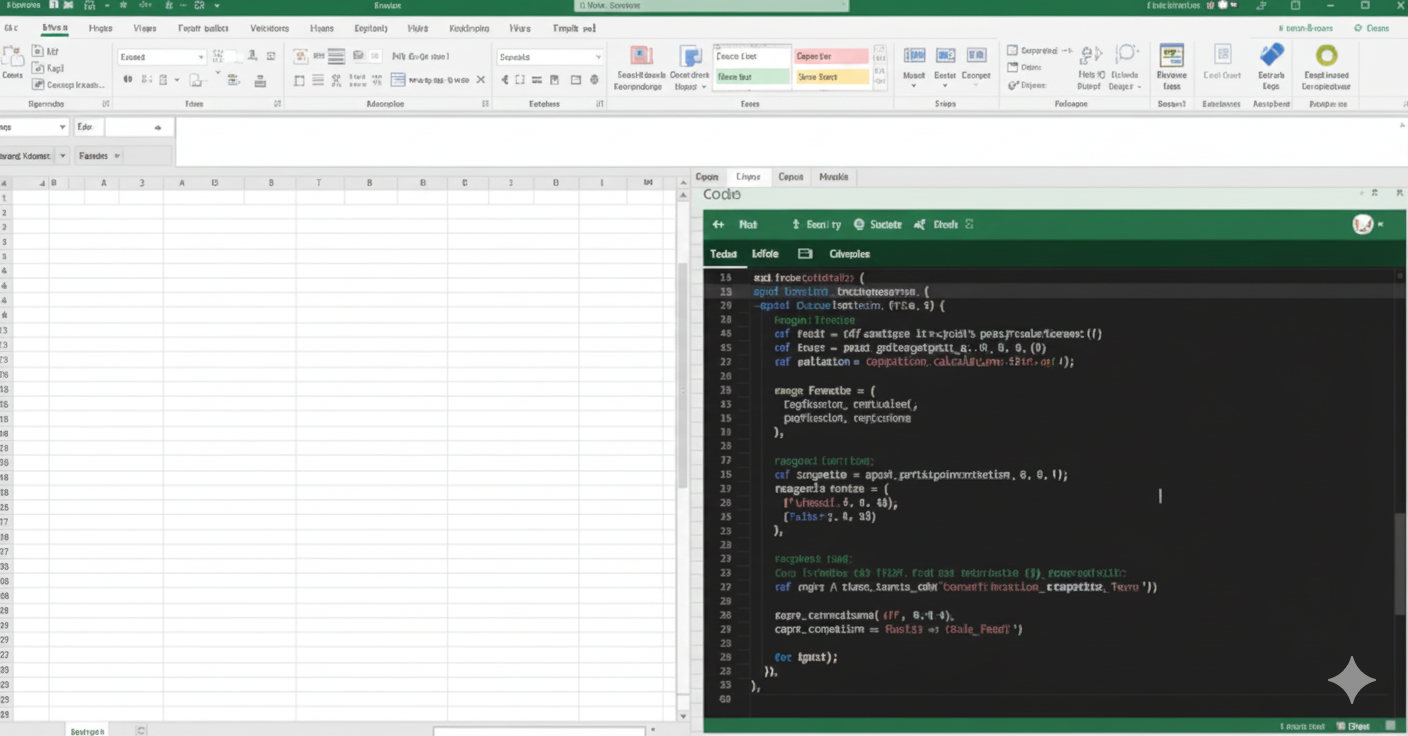
When working with Excel automation, VBA scripts, or complex workbook calculations, you may have come across a mysterious term: application.calculationstate. It appears in error messages, macro code, or discussions about performance issues. For many users, it is confusing at first glance — but this single property plays a powerful role in controlling how Excel performs calculations, updates formulas, and processes data.
This detailed guide explores everything you need to know about application.calculationstate: what it means, how it works, why it matters, and how you can use it to create faster, cleaner, and more intelligent Excel workflows.
Let’s break it down in clear, simple language.
What Is application.calculationstate?
application.calculationstate is a VBA property used in Microsoft Excel to check the current state of the workbook’s calculations. It tells you whether Excel is:
-
Finished calculating
-
Still calculating
-
Midway through a pending calculation
This property is extremely useful when writing macros that depend on real-time formula results.
In VBA, it returns one of three values:
-
xlDone – all calculations are complete
-
xlCalculating – Excel is actively calculating formulas
-
xlPending – calculations are queued but not yet started
Think of it as a “status indicator” for Excel’s brain.
Why application.calculationstate Matters
In simple terms, this property prevents your macro from running ahead of Excel.
For example:
-
When formulas update
-
When cells recalculate after data changes
-
When a workbook contains thousands of formulas
-
When Excel enters a slow calculation mode
application.calculationstate ensures that VBA scripts wait until Excel finishes its work.
Without checking this state, your code might:
-
Pull incorrect values
-
Run too early
-
Crash due to conflicts
-
Return outdated results
It acts like a traffic light for calculations.
Where application.calculationstate Is Used
You will find this property used in:
1. Macros involving large datasets
Scripts that depend on formula outputs must confirm calculations are complete.
2. Automations requiring accuracy
Financial models, dashboards, engineering sheets, and statistical tools rely on precise timing.
3. Custom application functions
Any VBA-driven tool that interacts with formulas uses this property to maintain reliability.
4. Performance-heavy workbooks
It helps manage calculation lag, especially when dealing with complex formulas.
How application.calculationstate Works in VBA
Using this property is very simple. For example:
This snippet checks whether Excel has finished calculating before proceeding.
You can also create wait loops:
This ensures your script does not move until Excel is 100% ready.
Common Calculation States and Their Meaning
Let’s break down the three possible states:
1. xlDone
This means Excel has completed all formula updates.
You can safely continue running your macro.
2. xlCalculating
Excel is actively processing formulas.
Your script should wait to avoid using incomplete results.
3. xlPending
Excel knows calculations are needed but hasn’t started yet.
This occurs when:
-
Multiple sheets trigger recalculation
-
Calculation mode is set to manual
-
Workbook is overloaded
This is a sign that you should delay executing any dependent code.
How application.calculationstate Helps Improve Performance
Large Excel files often lag or freeze due to heavy formula usage.
This property helps:
-
Avoid unnecessary recalculations
-
Reduce errors from half-calculated data
-
Prevent macro crashes
-
Optimize timing for reliable execution
For example, if your script updates formulas repeatedly, checking calculation state first ensures Excel doesn’t overload.
How To Fix Issues Related to application.calculationstate
Sometimes users face problems like:
-
Calculations getting stuck
-
application.calculationstate always showing “calculating”
-
Macros freezing due to pending calculations
Here are real solutions:
1. Change Calculation Mode
Go to:
Formulas → Calculation Options → Automatic
If it’s set to Manual, Excel may remain in “pending” mode.
2. Clear Excessive Volatile Functions
Functions like:
-
NOW
-
TODAY
-
INDIRECT
-
OFFSET
-
RAND
Trigger constant recalculation.
Removing or reducing them can drastically improve performance.
3. Fix Broken or Circular Formulas
Circular references often cause Excel to remain in a calculating state.
Check:
Formulas → Error Checking → Circular References
4. Reduce Array Formulas or Convert to Dynamic Arrays
Large array formulas slow down Excel.
Replacing them with LET() or dynamic array functions improves speed.
5. Restart Excel or Reset Calculation Engine
Sometimes the engine gets stuck.
Use:
This forces Excel to rebuild all calculation dependencies.
Using application.calculationstate to Delay Macros Safely
In automation, timing matters.
Before copying, pasting, or exporting data, ensure formulas finish updating.
A safe delay loop:
This avoids:
-
Miscalculations
-
Wrong values in reports
-
Script failures
It gives Excel the breathing room it needs.
Practical Example: Automated Dashboard Update
Imagine you have a dashboard with:
-
Pivot tables
-
Charts
-
SUMIFS / VLOOKUPS
-
PowerQuery connections
When updating data, Excel may take several seconds to recalculate.
Using application.calculationstate ensures updates complete before exporting reports or refreshing graphs.
Using application.calculationstate with Manual Calculation Mode
Many advanced users set calculation to Manual for speed.
This means formulas update only when:
-
Pressing F9
-
Running Application.Calculate
-
Triggered by VBA
In this mode, application.calculationstate becomes even more important because formulas won’t update unless you tell Excel to do so.
Example:
This ensures accuracy in manually-calculated workbooks.
How application.calculationstate Improves Data Accuracy
By ensuring that:
-
All formulas finish processing
-
Pending updates are handled
-
Macros wait for clean values
You avoid incorrect reports or incomplete data pulls.
This is essential for:
-
Financial forecasting
-
Statistical analysis
-
Budget planning
-
Engineering calculations
-
Inventory modeling
Accuracy depends on timing — and calculation state is your safeguard.
Best Practices for Using application.calculationstate
✔ Always check state before reading formula outputs
Never rely on instant updates.
✔ Use DoEvents inside waiting loops
This keeps Excel responsive.
✔ Avoid unnecessary full recalculations
They slow down large workbooks.
✔ Combine with CalculateFullRebuild only when needed
Use sparingly.
✔ Keep formulas optimized
Better formulas = smoother calculation state transitions.
Conclusion
application.calculationstate is more than a technical property — it is the heartbeat monitor of Excel’s calculation engine. It tells you when Excel is thinking, waiting, or ready. Whether you are building powerful dashboards, automating reports, or managing huge datasets, this property helps ensure everything runs smoothly, accurately, and without interruption.
By understanding how it works, how to check its state, and how to use it effectively in VBA, you can create faster, safer, and more intelligent Excel systems. Accuracy begins with timing — and application.calculationstate gives you complete control over that timing.
FAQs
1. What does application.calculationstate do?
It checks whether Excel has finished calculating formulas.
2. What are the possible states?
xlDone, xlCalculating, and xlPending.
3. Why does Excel stay in xlCalculating?
Usually due to volatile formulas, circular references, or heavy calculations.
4. Is application.calculationstate required in macros?
Not required, but highly recommended for accurate automation.
5. How do I fix slow Excel calculations?
Optimize formulas, reduce volatile functions, and use CalculateFullRebuild if necessary.