
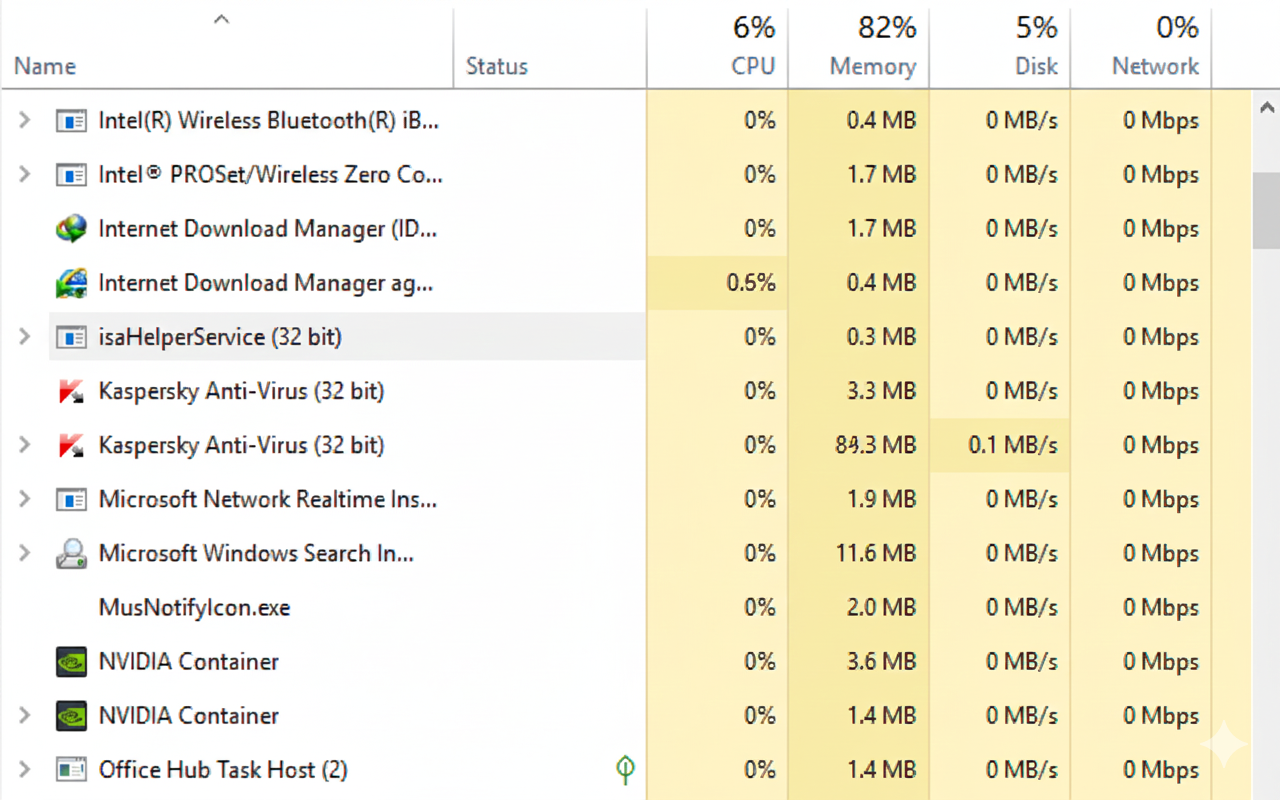
If you’ve ever opened Task Manager on your Windows device and noticed musnotifyicon.exe running in the background, you may have wondered what it is, whether it’s safe, and why it sometimes spikes CPU or appears suspicious. Many users assume every unknown process is a virus — but musnotifyicon.exe is far more ordinary than it seems.
This detailed guide explains everything you need to know about musnotifyicon.exe, its function, safety, origins, common issues, fixes, and optimization tips. The explanations are simple, beginner-friendly, and SEO-optimized to help readers uncover reliable information.
What Is musnotifyicon.exe?
Musnotifyicon.exe is a legitimate Windows system file associated with Microsoft Update Services (MUS). Its task is simple:
It displays update alerts in the system tray when your PC needs attention.
In other words, it is responsible for showing the small notification that appears near your clock when:
-
A Windows update is available
-
An update has failed
-
Your device needs a restart
This file works quietly in the background and only becomes active when Windows attempts to communicate update-related information.
Is musnotifyicon.exe Safe?
Yes — musnotifyicon.exe is completely safe when located in the correct system directory.
The genuine path is:
C:\Windows\System32\musnotifyicon.exe
If the file exists anywhere else, it may be a virus pretending to be a Windows process.
Signs your version is safe:
-
Located in the System32 folder
-
Digitally signed by Microsoft Corporation
-
Low CPU usage
-
Runs briefly and closes automatically
Signs your version may be unsafe:
-
Located outside System32
-
High or constant CPU usage
-
No Microsoft digital signature
-
Strange icons or pop-ups
When in doubt, scan using Windows Security.
Why Does musnotifyicon.exe Run on My PC?
This executable runs for several specific reasons:
1. Displaying update notifications
It activates when Windows wants to inform you about updates, failures, or security patches.
2. Communicating restart reminders
If your system requires a reboot to complete installation, musnotifyicon.exe triggers the notification.
3. Ensuring update integrity
It is part of the update workflow that ensures your operating system stays secure.
4. Maintaining user awareness
Without this process, many users would miss critical updates.
In short, musnotifyicon.exe is like a messenger — it delivers Windows update information to your desktop.
Common Issues Related to musnotifyicon.exe
Although safe, this process sometimes triggers problems. Here are the most common ones:
1. High CPU or Memory Usage
Occasionally, Windows Update glitches cause musnotifyicon.exe to consume unusual system resources.
2. Repeated Notification Pop-Ups
You might get stuck in a loop of update reminders.
3. musnotifyicon.exe Missing or Corrupted
Some users accidentally delete system files, leading to notification errors.
4. Suspected Malware Behavior
Hackers sometimes disguise malware using Windows-like names.
Knowing these issues helps you troubleshoot quickly.
How to Fix musnotifyicon.exe High CPU Usage
If musnotifyicon.exe is consuming too many resources, try these solutions:
1. Restart the Windows Update Service
-
Search “Services”
-
Find Windows Update
-
Right-click → Restart
2. Delete the SoftwareDistribution Folder
This resets update components safely.
3. Run Windows Update Troubleshooter
Settings → System → Troubleshoot → Windows Update
4. Perform a System File Scan
Run the following command in Command Prompt:SFC /scannow
5. Check for Malware
Use Windows Security → Full Scan
Most high resource usage errors resolve with these steps.
Is musnotifyicon.exe a Virus?
On its own, no.
But viruses sometimes copy names of trusted Windows files to avoid detection.
Check these points:
1. File Location
Only safe when located in System32.
2. Digital Signature
Right-click → Properties → Digital Signatures
It must say Microsoft Windows.
3. Behavior
Unusual behavior = suspicious file.
4. Antivirus Scan
Always recommended if you’re unsure.
If your version appears outside the correct folder, remove it immediately.
How to Disable musnotifyicon.exe (If Needed)
Although not recommended, you can disable it temporarily.
Method 1: Pause Windows Updates
Settings → Windows Update → Pause updates
Method 2: Stop Windows Update Service
Search “Services”
→ Windows Update
→ Stop
Method 3: Group Policy Editor
Pro/Enterprise only
Configure update notifications.
Remember:
Disabling update-related processes can reduce system security.
Why musnotifyicon.exe Should Not Be Removed
Deleting this file can:
-
Break update notifications
-
Cause Windows Update failures
-
Trigger missing file errors
-
Affect system stability
It is a core Windows component, not optional.
If it becomes corrupted, repair it using SFC and DISM scans.
musnotifyicon.exe and Windows 10 vs Windows 11
The file exists in both operating systems, but behaves slightly differently.
Windows 10 Behavior
More frequent notifications, especially restart prompts.
Windows 11 Behavior
More silent, minimal system tray clutter.
Both systems rely on this file for update communication.
How musnotifyicon.exe Impacts System Performance
Most users never notice its presence because it runs lightly and briefly.
However:
-
Slow PCs may experience momentary spikes
-
Broken update services may freeze the process
-
Outdated hardware may suffer from soft lag
But under normal conditions, its impact is almost zero.
How to Ensure musnotifyicon.exe Functions Properly
Follow these system care tips:
1. Keep Windows Updated
Ironically, updates fix update-related issues.
2. Avoid Third-Party “Optimizer” Tools
They may delete system files or break notification components.
3. Run Maintenance Scans Monthly
Use SFC and DISM.
4. Never Delete Files from System32
Unless instructed by an expert.
Should You Be Worried About musnotifyicon.exe?
No — this file simply wants to keep your system safe.
As long as:
-
It sits in the correct directory
-
It is signed by Microsoft
-
It behaves normally
— you have nothing to fear.
If something seems off, treat it like any suspicious program and investigate.
Your PC’s safety always comes first.
Conclusion
Musnotifyicon.exe may look unfamiliar, but it plays a vital role in your Windows experience. It keeps your system informed, secure, and updated by handling important update notifications. Problems with this file usually relate to Windows Update errors, not malware — but verifying its authenticity is always wise. With the right knowledge and a few simple troubleshooting steps, you can ensure this process runs smoothly and safely on your computer.
FAQs
1. Is musnotifyicon.exe harmful?
No, the official file is safe and belongs to Microsoft Windows.
2. Why does musnotifyicon.exe appear in Task Manager?
It runs briefly to show update notifications or restart reminders.
3. How can I check if the file is a virus?
Verify the file location and digital signature, then run a full system scan.
4. Can I delete musnotifyicon.exe?
No — removing it may cause Windows Update issues.
5. Why does musnotifyicon.exe use high CPU?
Usually due to a stuck Windows Update process; restarting services often fixes it.